Publishing on Kindle: Format Your Novel for Clean KDP Uploads
Publishing on Kindle gets easier when your files are clean. Format your novel for KDP, avoid bad conversions, and upload with confidence.
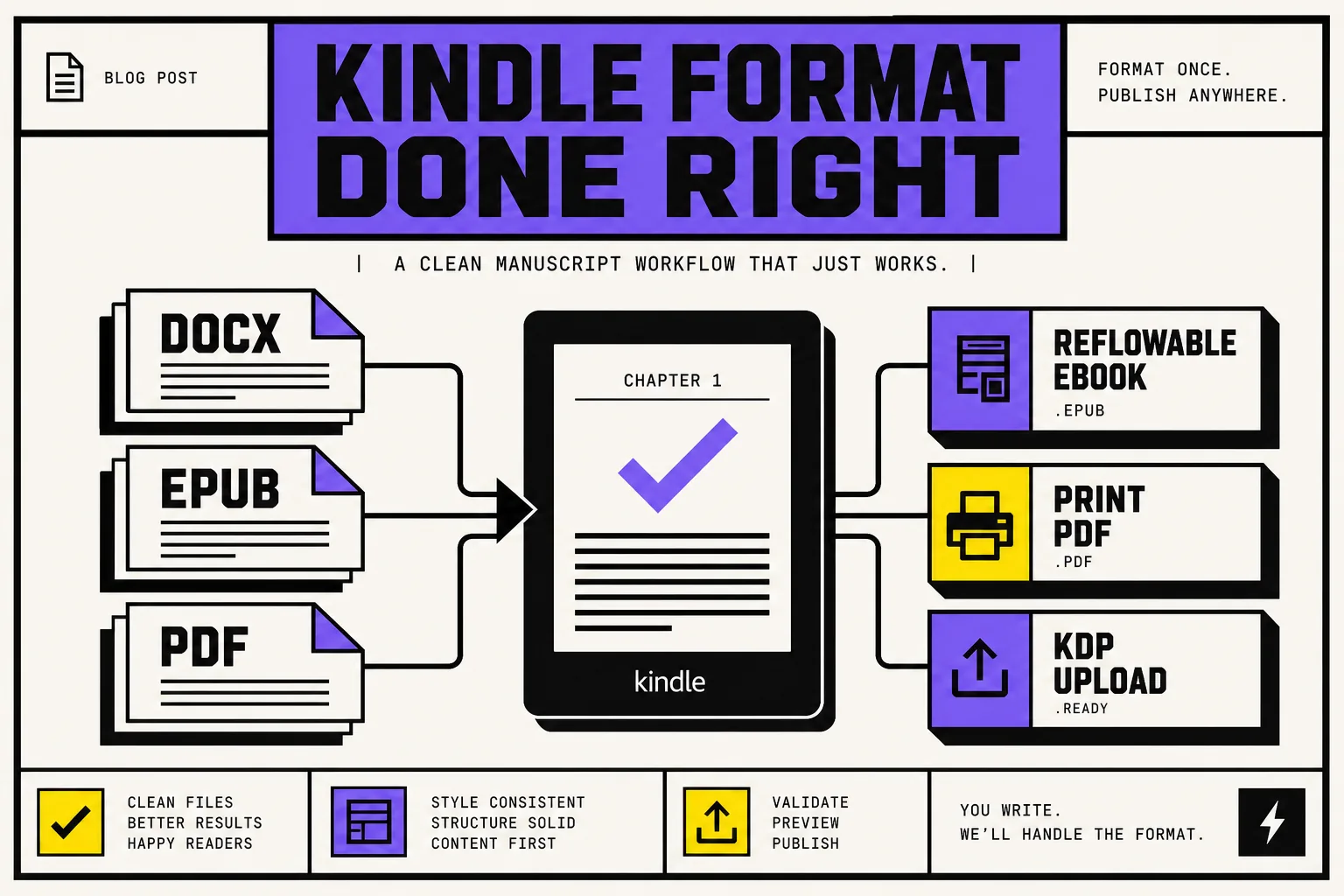
Most KDP upload problems are not really upload problems. They are formatting problems you only notice after Amazon converts your file, shows a broken preview, or turns your ebook into something that feels wrong on an actual Kindle.
If you are publishing on Kindle, the goal is not just to get a file accepted. The goal is to give KDP a file that converts cleanly, reads cleanly, and does not create extra cleanup work the night before launch.
This guide is for novelists, especially self-publishers, who want a smooth Kindle KDP upload without paying the formatting tax twice. We will keep it practical: what file to use, what to clean up before export, what to preview, and how to avoid the mistakes that trip up first time and repeat authors alike.
If you want the full launch process after formatting, pair this with our KDP publishing checklist and step by step guide to self-publishing a novel on Amazon KDP.
Publishing on Kindle starts with choosing the right file
Here is the part that causes the most confusion: your Kindle ebook and your paperback are not the same product, so they should not use the same final file.
According to Amazon's current KDP help docs, reflowable ebooks should be uploaded as EPUB, DOCX, or KPF, while MOBI is no longer accepted for new uploads. Amazon also warns that PDF can preserve a fixed layout that does not convert well for ordinary ebooks, and recommends reflowable formats when possible. See KDP's docs on supported ebook formats, MOBI support changes, and reflowable vs fixed layout content.
For most novels, this is the cleanest setup:
| Edition | Best upload format | Why |
|---|---|---|
| Kindle ebook | EPUB or clean DOCX | Reflowable text works across Kindle devices and apps |
| Paperback | Print ready PDF | You control trim size, margins, page breaks, and typography |
My rule of thumb: use a reflowable file for the ebook, and a separate print file for the paperback.
A lot of author frustration comes from crossing those wires. Recent KDP and self-publishing discussions on Reddit keep circling the same issue: an author uploads a print PDF as the ebook file, the preview looks wrong on e-ink devices, and they only realize later that they built the wrong kind of book for the wrong reading experience.
Your Kindle ebook should be reflowable, not page locked
A novel on Kindle is supposed to adapt to the reader's screen, font size, and device. That is what Amazon calls reflowable content. It is better for readability, works across Kindle devices and apps, and supports accessibility features more cleanly than fixed layout files, according to Amazon's Kindle content path guide.
That means your ebook file should be structured, not hand-decorated.
What to do in your ebook manuscript
Before you export your ebook file, clean up these basics:
- Use heading styles for chapter titles. KDP's ebook manuscript formatting guide specifically tells authors to apply Heading 1 to chapter titles, which also helps generate the table of contents.
- Use first line paragraph indents, not tabs or repeated spaces. KDP notes that tab spacing does not convert reliably for Kindle.
- Insert real page breaks before each chapter. Do not fake chapter starts with a stack of blank lines.
- Keep front matter simple. Title page, copyright page, dedication if you want it, and a linked table of contents are enough for most fiction.
- Remove print habits from the ebook export. Headers, mirrored margins, and carefully forced page numbers belong to print, not to a reflowable Kindle novel.
If your manuscript is mostly straight prose, a clean DOCX often works fine. If your workflow already exports a valid EPUB cleanly, that is also a strong option. Amazon supports both, and recommends validating files with Kindle Previewer before upload.
What to avoid
These are the classic ugly-conversion triggers:
- manual font changes on every chapter
- extra returns between paragraphs
- centered text used where a style should do the job
- tabs for indentation
- image heavy title pages that look fine in Word but break on smaller screens
- uploading a PDF as the ebook just because it "looks right" on your laptop
If your book is a normal novel, the ebook should feel invisible. The reader should not notice the formatting at all.
Format the paperback as its own file
This is where many authors lose hours. They build one Word document, make it look decent on screen, then expect it to behave like a finished print interior. Paperback formatting asks different questions.
For print, you need to think about trim size, gutter, mirrored margins, chapter starts, and page numbering. Amazon's paperback submission guidelines spell out minimum inside and outside margins based on page count, and the paperback guides recommend mirror margins for printed books.
The paperback decisions to make early
Choose these before your final print export:
- Trim size
- In the US market, 6" x 9" is common for many trade paperbacks, but genre expectations matter.
- Bleed or no bleed
- If interior images or design elements run to the edge of the page, Amazon requires a PDF for upload.
- Margin setup
- Your gutter needs to grow with page count. KDP publishes a margin table for this in the paperback guidelines.
- Front matter and page numbering
- KDP's print interior docs show how title pages, copyright pages, chapter openings, and page numbers are normally handled in books.
For example, Amazon notes that front matter appears before chapter one, chapter one traditionally starts on a right facing page, and page numbers are part of the print layout system, not the ebook one. See the official guide on front matter, body matter, and back matter.
Important: if your paperback is already published, do not assume you can upload that same print file as your ebook. Amazon explicitly warns that previously formatted paperback files usually need to be reformatted using ebook guidelines to avoid errors in Kindle conversion.
The clean KDP workflow I recommend for novelists
Here is the workflow that creates the fewest last minute surprises.
1. Write from one master manuscript
Keep one source manuscript while drafting and revising. That helps you avoid version drift.
2. Clean the structure before you export
Standardize chapter headings, paragraph styles, scene break styling, and front matter. The more your book relies on styles instead of manual tweaking, the cleaner your exports will be.
3. Export separate files for separate jobs
- EPUB or DOCX for the Kindle ebook
- PDF for the paperback interior
- separate cover files based on the format you are publishing
This one habit solves more Kindle KDP headaches than almost anything else.
4. Preview before you trust the upload
Amazon gives you two checks here:
- Kindle Previewer, the desktop app, which previews EPUB, DOCX, KPF, and other supported files with current Enhanced Typesetting support
- KDP Online Previewer, which can also flag issues such as spelling problems, low quality images, language mismatch, and wrong layout in some cases
Use both when the book matters, which means use both for every book. Amazon documents this in its Kindle Previewer help page, upload and preview guide, and ebook formatting guide.
5. Fix problems in the source file, not in a panic copy
If the preview is off, go back to the source manuscript, correct the structure, export again, and re-upload. KDP itself says that for issues not fixed directly in the preview tool, you need to edit the original source file and upload a new version.
That is the difference between a repeatable workflow and a messy launch week.
The 7 formatting mistakes that sabotage Amazon Kindle publishing
If you remember nothing else from this article, remember this list.
1. Using one final file for ebook and paperback
It sounds efficient. It usually is not.
2. Uploading a PDF as a standard novel ebook
For a normal text novel, PDF is usually the wrong ebook file because it locks in page design that Kindle readers expect to control.
3. Styling with tabs, spaces, and blank lines
Word may tolerate this. Kindle conversion may not.
4. Skipping heading styles
If your chapter titles are not structured properly, your table of contents and navigation are more likely to break.
5. Forgetting the preview step
A successful upload is not the same thing as a clean reading experience.
6. Treating print layout habits like ebook requirements
Headers, exact page counts, and print page numbers are print concerns. They are not the backbone of a good ebook.
7. Leaving formatting until the very end
Formatting gets easier when your manuscript has been structurally clean from the start.
Where BookWitch fits in
BookWitch is not a one click book generator. It is a drafting and revision workspace built for authors who want control.
Where that helps with KDP formatting is earlier than most people think.
- Your Story Bible stays persistent, so character, world, and style details stay coherent across a long novel instead of drifting between chapters.
- You stay in control of every change, with accept, reject, and regenerate choices instead of mystery edits.
- Voice matching helps the draft sound like you, which makes the final export worth formatting in the first place.
- You can export clean DOCX, EPUB, and PDF files, which is exactly what a practical Kindle and print workflow needs.
- Multilingual authors can keep one writing workflow even when preparing books for different markets.
In other words, BookWitch helps you avoid the common self-publisher trap of writing in one tool, patching structure in another, then wrestling the final file into shape right before Amazon Kindle publishing.
Quick FAQ
Should I upload DOCX or EPUB to KDP for a novel?
Either can work. If your DOCX is clean and style based, KDP can convert it well. If your workflow produces a validated EPUB, that is also a strong choice. For most fiction, pick the format that gives you the cleanest reflowable preview.
Can I use the same file for ebook and paperback?
You can start from the same manuscript, but you should not rely on the same final exported file. Ebook and print have different formatting needs.
Is publishing in Kindle the same as using KDP?
Usually, yes. When authors search for publishing in Kindle, they usually mean publishing a Kindle ebook through Kindle Direct Publishing, Amazon's self-publishing platform.
Clean upload checklist before you hit Publish
Before you send your novel to Kindle KDP, check these off:
- chapter titles use a consistent heading style
- paragraph indents are style based, not tabs
- each chapter starts with a real page break
- front matter is simple and intentional
- your ebook export is EPUB, DOCX, or KPF, not PDF
- your paperback export is a print ready PDF
- you previewed the ebook in Kindle Previewer
- you checked the KDP Online Previewer before publishing
- you fixed issues in the source manuscript, then re-exported
That is how you get a clean KDP upload. Not by crossing your fingers at the last step, but by giving Amazon the right file for the right job.
If you are serious about publishing on Kindle more than once, build a repeatable formatting workflow now. It will save you time on every book after this one.