Kindle Publishing: How to Publish Your First Ebook on Amazon
Kindle publishing made simple. Learn the exact Amazon KDP ebook setup, from account and files to pricing, keywords, KDP Select, and launch day.
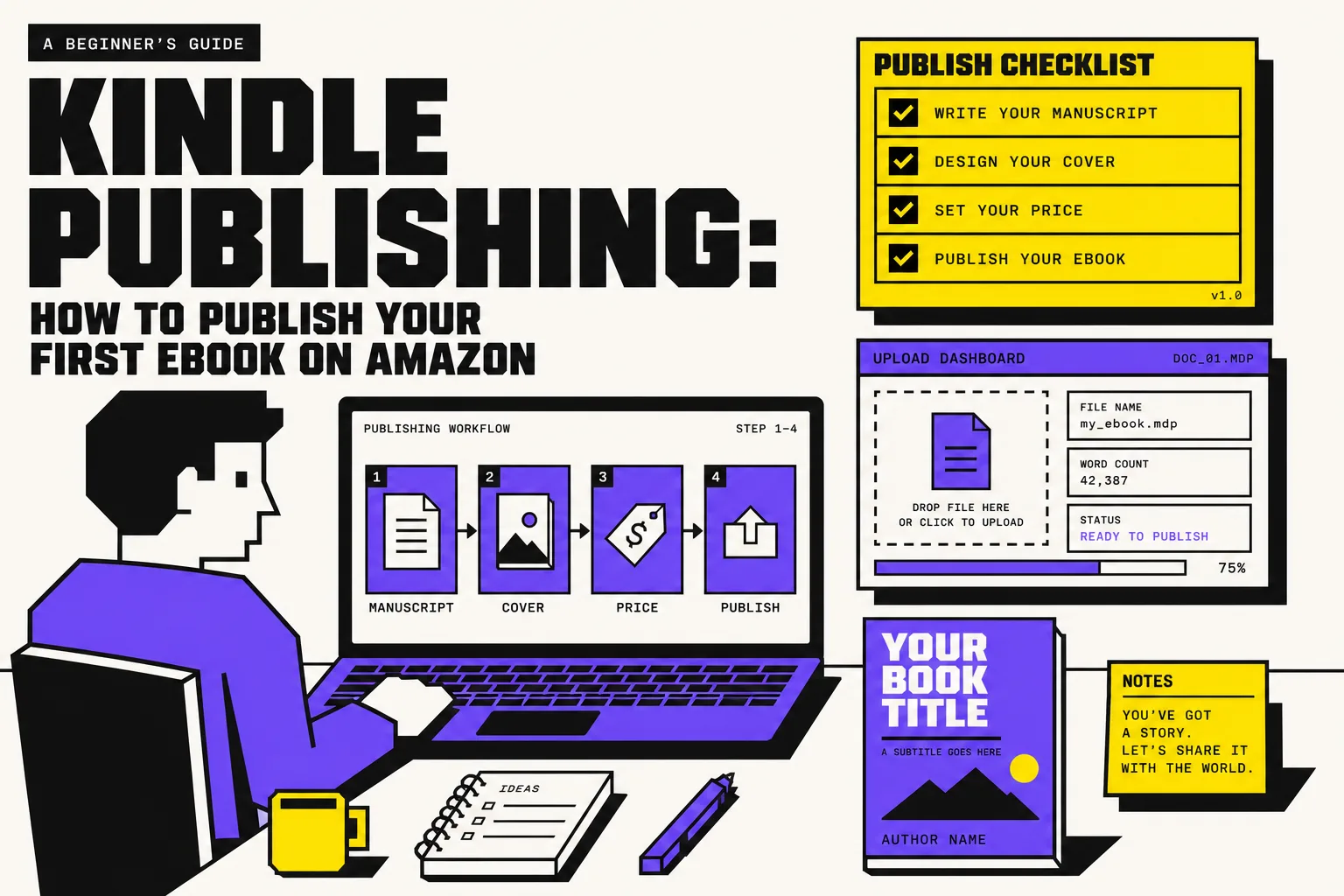
Most first-time authors do not get stuck on the writing. They get stuck on the KDP screens after the writing. Files, keywords, KDP Select, royalties, tax details, and the dreaded "why is my book not showing up yet?" question trip people up more than the upload button itself.
This guide walks you through kindle publishing step by step, with the real Amazon KDP flow a beginner actually sees. If your manuscript is finished, or close enough that you are preparing files, this is the process.
What kindle publishing actually means
When people say "kindle publishing," they usually mean publishing an ebook through Amazon Kindle Direct Publishing, or KDP. You create a KDP account, add your book details, upload your ebook file and cover, choose pricing and distribution, then submit it for review.
For a first ebook, think of KDP as three jobs:
- Metadata: title, subtitle, author name, description, keywords, categories.
- Files: manuscript and cover.
- Business settings: rights, territories, pricing, royalties, and whether you want KDP Select.
That is the whole game. If you prepare those three parts before you log in, publishing on Kindle feels straightforward. If you try to improvise all of them inside the dashboard, it feels harder than it is.
What to prepare before you open KDP
Before you start publishing in Kindle, have these ready:
- A finished manuscript, ideally exported as EPUB, DOCX, or KPF, which Amazon recommends for reflowable ebooks.
- A finished cover that already looks right at thumbnail size.
- Your book description. Write this before upload day, not inside a text box while tired.
- Your author name or pen name exactly as you want readers to see it.
- Seven keyword phrases or fewer. KDP lets you choose up to seven keywords.
- A pricing plan based on books similar to yours in genre, length, and audience.
- Your banking and tax details. Amazon says you will need author, payment, and tax information, and your bank account name needs to match your KDP account name.
Beginner tip: make a single folder called KDP Upload with your manuscript, cover, blurb, keywords, and price notes. Tiny admin mistakes are what slow first-time authors down.
If you want a broader launch checklist, our KDP publishing checklist pairs well with this walkthrough.
Kindle publishing step by step
1. Create your KDP account
You can sign in to KDP with an existing Amazon account or create a new one. During setup, Amazon asks for your author or publisher info, payment details, and tax info. KDP currently supports direct deposit, wire transfer, or check, not PayPal.
For a beginner, the practical rule is simple:
- Use the legal name tied to your bank account for the account setup.
- Use your pen name later on the book itself if you want one.
- Fill out the tax section carefully the first time so your payments are not delayed.
Do not skip this part because it feels boring. A clean account setup makes the rest of Amazon Kindle publishing much smoother.
2. Start a new Kindle ebook in your Bookshelf
Inside KDP, create a new Kindle eBook. The setup flow moves through book details, content upload, and pricing.
On the details side, you will usually add:
- book title and subtitle
- series information, if relevant
- author name and contributors
- description
- publishing rights
- keywords
- categories
- release option, now or pre-order
This is where beginners tend to rush. Slow down here.
Your title and cover get the click. Your description closes the sale. Your keywords help Amazon understand where your book belongs. KDP allows up to seven keywords, so use specific reader phrases, not vague words like book or fiction.
A fantasy example is more useful than a theory lesson. Bad keywords: magic, adventure, dragons. Better keywords: epic dragon rider fantasy, clean fantasy adventure, academy fantasy for adults.
3. Upload your manuscript and cover
For most novels and text-heavy ebooks, Amazon recommends uploading EPUB, DOCX, or KPF files. It also says MOBI is no longer supported for reflowable content, so if you still have an old MOBI export sitting in a folder, ignore it.
A few practical checks before you upload:
- Make sure chapter headings are consistent.
- Use scene breaks intentionally.
- Check your table of contents.
- Remove weird spacing from copy-paste imports.
- Preview on a phone-sized screen, not just your laptop.
Amazon specifically recommends using Kindle Previewer to validate your ebook before publishing. That is worth doing, because formatting problems are much easier to fix before review than after the book is live.
Also, if you are publishing an ebook only, you do not need an ISBN for eBooks on KDP. New authors waste time on this all the time. Save that energy for your product page and sample chapters.
4. Choose rights, territories, pricing, and royalties
This is the part of kindle publishing that confuses beginners most, mainly because KDP Select sits right next to your normal ebook setup.
Here is the short version:
- If you own the rights, you can publish.
- If you do not enroll in KDP Select, you can sell your ebook on Amazon and also distribute the ebook elsewhere.
- If you do enroll in KDP Select, Amazon requires your ebook to be exclusive to the Kindle Store for a 90-day period. Print and audio can still be sold elsewhere.
That means KDP Select is not free extra exposure with no tradeoff. It is a strategy choice.
For royalties, KDP offers 35 percent or 70 percent depending on pricing and territory rules. On the 70 percent option, Amazon says your royalty is calculated from list price without VAT, minus delivery costs, which vary by file size.
My beginner recommendation: do not click KDP Select just because it is there. Choose it if you understand the exclusivity and want access to Kindle Unlimited readers. Skip it if you want your ebook wide from day one.
For pricing, compare the top books in your immediate category, not just your dream comps. A 35,000 word paranormal romance and a 140,000 word epic fantasy do not price the same way, even if both are fiction.
5. Hit publish, then do not panic
Once you submit, your ebook goes into review. Amazon says ebook titles are typically reviewed and published within 24 to 72 hours. While your book is in review, it is locked for changes.
Here is the part that surprises first-time authors:
- your ebook detail page can take up to 72 hours to appear
- your book can take up to 72 hours after it is live to show in search results
- the "Read Sample" or Look Inside feature can take 7 to 8 business days
So if you publish on Monday and keep refreshing Amazon on Monday night, a missing search result does not automatically mean something went wrong.
This is normal. Wait for the timeline before changing five settings at once.
If you are publishing a novel and plan to add print later, our guide on how to self-publish a novel on Amazon KDP covers the bigger picture.
Common beginner mistakes in publishing on Kindle
Treating upload day like editing day
If you are still rewriting your blurb, fixing chapter titles, and swapping scene breaks on the day you publish, you are not ready to publish. Finish the book setup materials first.
Picking vague keywords
KDP gives you seven slots, not a magic ranking button. Use phrases a reader would actually search, and make them close to your subgenre or promise.
Clicking KDP Select without understanding exclusivity
This shows up constantly in beginner author communities. Select can be a smart move, but it is not automatic. Read the tradeoff before you commit your ebook to a 90-day exclusive term.
Pricing from ego instead of category reality
Readers compare your book with what sits next to it on Amazon. Price with that shelf in mind.
Confusing "submitted" with "discoverable"
A book can be approved and still not be searchable for a bit. Amazon's own timelines matter more than your refresh button.
A simple first ebook checklist
If you want the fastest clean path through amazon kindle publishing, use this order:
- Finish the manuscript.
- Export a clean EPUB or DOCX.
- Finalize the cover.
- Write the description.
- Choose your keywords and categories.
- Set up your KDP account with banking and tax info.
- Create the Kindle eBook listing.
- Upload files and preview them.
- Choose pricing, territories, and KDP Select or wide distribution.
- Publish, then wait for review and search indexing.
That is it. Kindle publishing is not easy because it is magical. It becomes manageable when you prep the inputs before you meet the dashboard.
Where BookWitch fits
BookWitch does not publish to Amazon for you, and that is a good thing. You should stay in control of the final files and metadata. What BookWitch does is help you arrive at KDP with a better book package.
If you draft in BookWitch, you can keep your characters, world rules, and voice consistent across a long project with the Story Bible always in view. You can export clean EPUB and DOCX files for KDP, compare suggestions before accepting them, match your own prose style, and work in multiple languages without losing control of the manuscript.
For a first ebook, that matters. Most publishing headaches start earlier than the KDP dashboard. They start when the manuscript, blurb, and positioning are still messy.
Kindle publishing FAQ
Do I need an ISBN for a Kindle ebook?
No. Amazon says you do not need an ISBN for eBooks on KDP.
Do I have to join KDP Select?
No. KDP Select is optional. If you join, your ebook must stay exclusive to the Kindle Store for the enrollment period.
How long does it take for my first ebook to go live?
Amazon says ebooks are typically reviewed and published within 24 to 72 hours. Search visibility and the sample feature can take longer.
Do I need a special ebook file?
For most reflowable ebooks, Amazon recommends EPUB, DOCX, or KPF.
Your next step
If your manuscript is finished, do not spend another two weeks "researching Kindle publishing." Open KDP, prep the materials above, and walk through the flow once.
The first time feels technical. The second time feels routine. That is normal.