KDP Publishing Checklist: From Finished Manuscript to Live Amazon Listing
A practical KDP publishing checklist for first-time authors: metadata, formatting, covers, pricing, proof copies, and what to do before you publish.
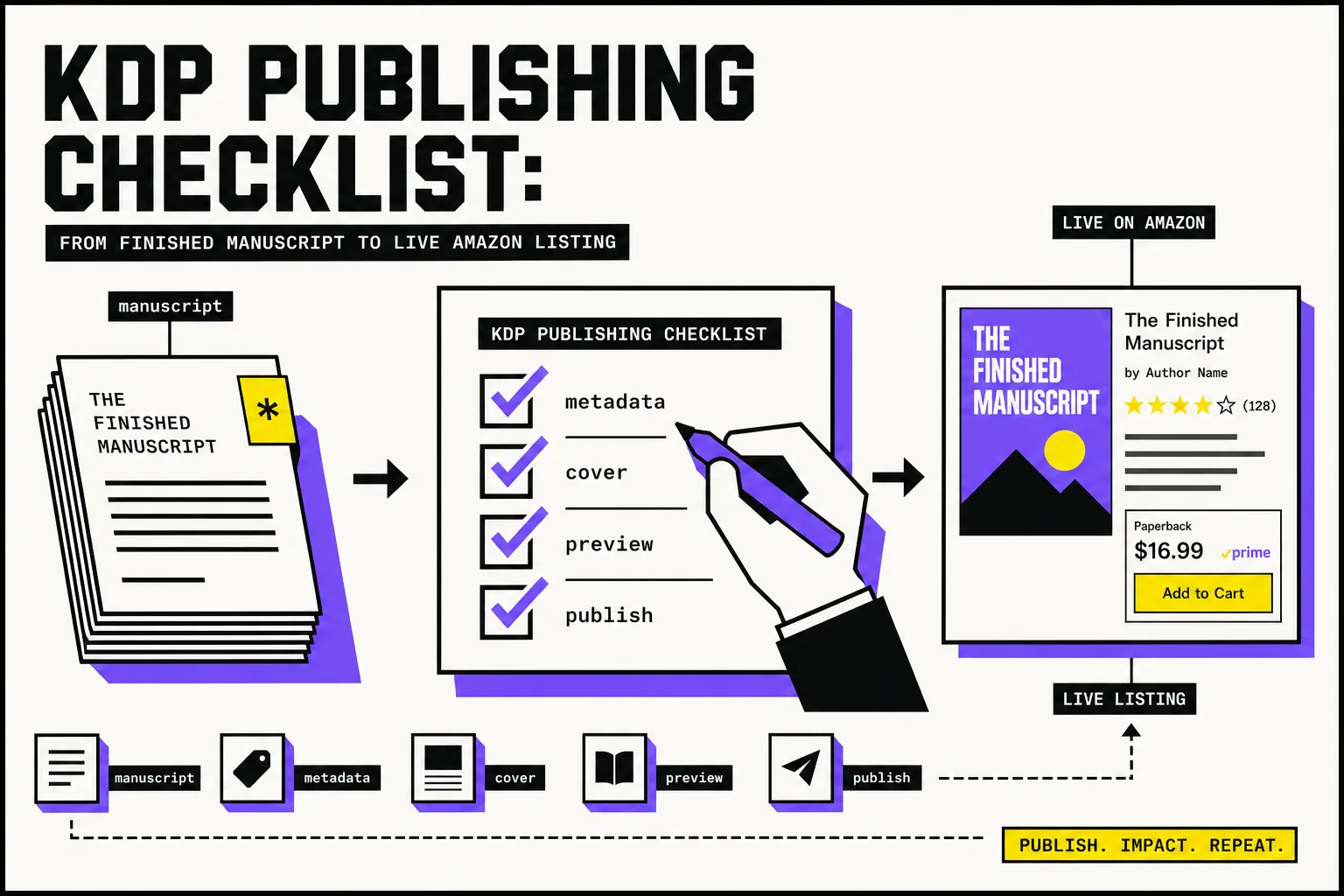
Finishing a manuscript feels like the hard part. For a lot of first-time authors, it isn’t. The last stretch of kdp publishing is where books get stuck on trim size, metadata mismatches, cover files, and that awful moment when KDP’s Previewer spots problems you didn’t know existed.
And if you read what new authors ask in public, the pattern is obvious: people say formatting nearly broke them, they’re unsure how keywords really work, and they don’t know whether they should trust the screen preview or order a proof first (formatting thread, keywords thread, categories thread).
So here’s the practical version: an end-to-end checklist for getting your first book live on Amazon KDP without making the common rookie mistakes.
KDP publishing checklist at a glance
If you only want the short version, work in this order:
- Decide which format you’re publishing today: eBook, paperback, or both.
- Lock your metadata: title, subtitle, author name, series, description, keywords, categories, rights.
- Create a clean eBook file and a separate clean print file.
- Finalize your paperback interior before building the full wrap cover.
- Run KDP’s Previewer for every format.
- Order and inspect a paperback proof if you’re publishing print.
- Set pricing and territories.
- Hit Publish.
- Wait for the listing to go live before panicking.
- Check the live Amazon page for linking, description, categories, and cover display.
Now let’s do the full checklist properly.
1) Decide your format before you upload anything
Your first big KDP decision is simple: are you publishing an eBook, a paperback, or both?
That matters because KDP setup is format-specific. Amazon’s own setup guide says you complete title setup for each format separately, and if you want your editions linked on one detail page, the core details need to match exactly across formats (Title setup guide, titles and editions).
A few first-book rules:
- eBooks do not need an ISBN on KDP.
- Paperbacks do need an ISBN.
- KDP offers a free ISBN for paperback and hardcover, but that ISBN can only be used on KDP; if you want broader use elsewhere, buy your own (Get an ISBN).
- KDP Select is for the Kindle eBook only and is a 90-day exclusivity program. It can be useful, but don’t click it casually if you plan to sell the eBook anywhere else (KDP Select).
Practical advice: if this is your very first book, there’s nothing wrong with publishing the eBook first and adding paperback once the print file is truly ready. “Both at once” sounds efficient. It often isn’t.
2) Lock your metadata before you touch the upload tab
Most first-timers treat metadata like admin. It isn’t. It’s your book’s storefront.
KDP calls these fields your book details, and it warns that many of them are effectively locked after publication or require a new edition to change cleanly later (Book detail resources, update your book details).
Before you upload, have one plain-text sheet with:
- title
- subtitle
- primary author name
- contributors
- series name/number if relevant
- book description
- seven keyword phrases
- selected categories
- publishing rights / territories
A few official best practices matter more than people realize:
Title and author must match the cover
KDP says your title field should contain the actual title exactly as it appears on the cover, and matching title/author metadata helps Amazon link formats together (titles and editions, why books aren’t linked).
That means no last-minute “marketing subtitles” you forgot to add to the cover.
Your description should sell the book, not summarize every subplot
Amazon’s own description guide recommends keeping it simple, compelling, and professional, and KDP supports limited HTML formatting in the description field (Write a book description).
Keywords are reader phrases, not random genre labels
KDP allows up to seven keyword or short-phrase fields and specifically recommends using them in the logical order readers search, checking Amazon’s own search suggestions, and avoiding metadata duplication, subjective claims, or program names like “Kindle Unlimited” and “KDP Select” (keywords guide).
That lines up with what confused authors keep asking on Reddit: many new publishers treat keywords as broad genre tags, when they work better as search phrases readers actually type.
Categories matter for discovery
KDP’s categories help readers discover your book, and Amazon notes that if you can’t find a precise category, your keywords also help determine where the book is shelved (KDP Categories).
Good beginner rule: pick the most accurate categories first. Don’t try to be clever before you’re clear.
3) Build separate files for eBook and print
One of the most common first-book mistakes is assuming one “final manuscript” file should work everywhere.
Usually, it shouldn’t.
KDP’s eBook formatting guide says that if you already prepared a paperback file, you should reformat it to eBook guidelines to avoid formatting errors (eBook manuscript formatting guide). And KDP’s paperback submission guidelines have a different set of rules entirely (paperback submission guidelines).
For eBook files
Use KDP’s eBook guidance, preview carefully, and don’t assume your print PDF is a good Kindle file just because it looks nice on your laptop (eBook manuscript formatting guide).
For paperback files
KDP’s print requirements are more technical than most first-time authors expect. The big ones:
- single-page files, not spreads
- images at 300 DPI minimum
- fonts embedded
- transparent layers flattened
- no crop marks, trim marks, comments, bookmarks, or placeholder junk
- correct trim size and margins
- if your interior uses bleed, the file has to be sized for bleed correctly (paperback submission guidelines, trim size, bleed, and margins)
KDP says the most common U.S. trim size is 6" x 9", but that doesn’t mean every book should use it (trim size, bleed, and margins). Choose the trim size that fits your genre and reading experience, then format for that size from the start.
If your pages bleed to the edge, KDP requires the file to extend beyond trim lines; its print guidelines specify 0.125" bleed on the outer edges and a full-bleed PDF sized 0.25" higher and 0.125" wider than trim (paperback submission guidelines).
Important: finalize the interior before you finalize the wrap cover. KDP’s Cover Creator notes that spine width depends on page count, which means a changed interior can force a changed cover (Cover Creator).
If you’re publishing fiction, this is also the stage to catch continuity issues before they become print problems. That’s where BookWitch fits naturally: clean up character names, world details, and voice drift before you export the files.
4) Prepare the cover after the interior is stable
For print, the cover isn’t just a front image. It’s a full production file.
KDP lets you use Cover Creator or upload your own cover file (Cover Creator, Create a Paperback Cover). If you’re making your own paperback cover, remember:
- the cover size depends on trim size and spine width
- text should stay safely inside trim lines
- title and author name should match your book details exactly
- you can upload a cover with or without a barcode; if you don’t provide one, KDP can place it for you (Create a Paperback Cover, Barcodes)
A boring but useful rule: don’t sign off on a cover until the metadata, trim size, and final page count are all settled.
5) Preview like a suspicious reader, not a hopeful author
KDP gives you preview tools for a reason.
Amazon’s Upload and Preview Book Content page says to use the Online Previewer for eBooks and Print Previewer for paperbacks, and it notes that Print Previewer also checks for errors you need to fix before submission (Upload and preview book content).
Do not skim this part.
Check:
- front matter
- chapter starts
- scene break spacing
- headers and page numbers
- table of contents links
- image placement
- odd blank pages
- anything touching trim or margins in print
If you’re publishing a paperback, order a proof copy. KDP explicitly says you can preview with Print Previewer and also by ordering a physical proof copy (Upload and preview book content).
That matches real-world experience. In Reddit threads, first-time authors often say the on-screen version looked fine until a proof exposed margin, header, or print alignment issues. If this is your first print book, skipping a proof is usually fake efficiency.
6) Set pricing, rights, and territories carefully
Once the files are clean, you still have one more set of decisions that affect whether your Amazon listing works the way you expect.
For eBooks, KDP offers 35% and 70% royalty options, but the 70% option has territory and pricing requirements (Digital Book Pricing Page, Price Your Book).
For print books, your list price must stay within KDP’s allowed range for that format and marketplace (Print Book Pricing Page).
Also make sure your publishing rights and territories are correct. If you only hold certain rights, this is not the place to guess (eBook distribution rights).
Practical advice for a first launch: pick a sensible price you can defend, then move on. You can change price later. KDP’s timeline page says price updates usually appear within 24 hours after publication changes are submitted (Timelines).
7) Publish, then respect the timeline
A lot of first-time KDP stress is just timeline confusion.
KDP’s current timeline page says that once you submit a book or update for publication, it takes up to 3 business days for the book to go live on Amazon (Timelines).
That same help page says:
- your book may take up to 72 hours after going live to appear in search results
- linked editions can take 48 hours to 1 week after each format is live
- the Read Sample / Look Inside feature can take 7–8 business days
- cover thumbnail updates can take up to 72 hours (Timelines, cover image update help)
So if you publish at 9:00 a.m. and keep refreshing Amazon at 1:00 p.m., you are not diagnosing a problem. You are just being a first-time author.
8) Check the live Amazon listing before you move on
Once the listing is live, do one clean QA pass on the actual product page.
Look for:
- correct title and subtitle
- correct author name
- correct description formatting
- correct cover image
- linked Kindle and paperback editions if you published both
- price showing as expected
- categories that make sense
If something is weak but editable, fix it. KDP allows changes to fields like description, keywords, categories, and pricing after publication, while more fundamental identity fields are much harder to change cleanly (update your book details).
That’s the real reason to double-check metadata before launch: some fixes are easy, some are annoying, and some are “new edition” territory.
9) The five mistakes that cause the most pain on a first KDP book
If you remember nothing else, remember these:
1. Using the same file for Kindle and print
That’s how you end up with weird conversion problems, broken spacing, or a print PDF masquerading as an eBook.
2. Designing the paperback cover before page count is final
Spine width changes. Then your cover changes.
3. Treating keywords like filler
KDP gives you seven keyword fields for a reason. Use reader search phrases, not vague label soup.
4. Publishing paperback without checking a physical proof
Especially for your first book.
5. Mismatching metadata across formats
If your eBook and paperback title details don’t match, linking issues get much more likely.
Final checklist before you hit Publish
Here’s the last pass I’d personally use:
- Title on the cover matches title in KDP exactly.
- Author name is consistent across all formats.
- Description is clean, readable, and not overstuffed.
- Seven keyword fields are filled with real search phrases.
- Categories are accurate.
- eBook file has been previewed.
- Paperback file has been previewed.
- Paperback proof has been ordered and checked, or you’ve consciously accepted the risk.
- Price and territories are correct.
- KDP Select decision has been made intentionally.
- You understand that “not live yet” on day one is normal.
That’s it. KDP publishing is not mysterious, but it is picky. A calm checklist beats frantic fixing every time.
And if you’re publishing fiction, especially a series, the cheapest mistakes to fix are the ones you catch before export. That’s exactly where a tool like BookWitch helps: keep your world, characters, and voice coherent while you’re still writing, so your publishing week is about files and listings, not continuity cleanup.